Reports
What your customers need, in their own words.
Every request your users make is a signal. Reports turn them into product intelligence: what customers change, what they keep, and what they asked for that your product can’t do yet. From what users did.
The questions a product manager asks, answered.
Customers tell Usivity what they want in plain language, inside your product. Each request becomes a personalization, or a record of what your product couldn’t do.
Reports add them up across every user and every account, so you see demand as it is, not as the loudest customer describes it.
Changes
What do customers change most?
The most requested changes, by category and sub-category, with how many people and accounts made each.
Accounts
Which accounts personalize, and how much?
Every account’s users, how many personalize, and how often their personalizations are used.
What sticks
Which changes are still on after 14 days?
The share kept, overall and by category. A change people keep is a change they need.
Gaps
What did they ask for that we can’t do yet?
Every request the product couldn’t do, week by week, from how many people at how many accounts.
Where
Where do users hit the wall?
Those requests grouped by the part of your product they were in, in the users’ own words.
Data
What data do they add from our sources?
The fields from your data sources that users add to their views: candidates to show by default.
What users asked for, and what they kept.
Product analytics show you where users go. Reports show you what they wanted when they got there, what they did about it, and whether it lasted.
Product analytics
Usivity Reports
Requests
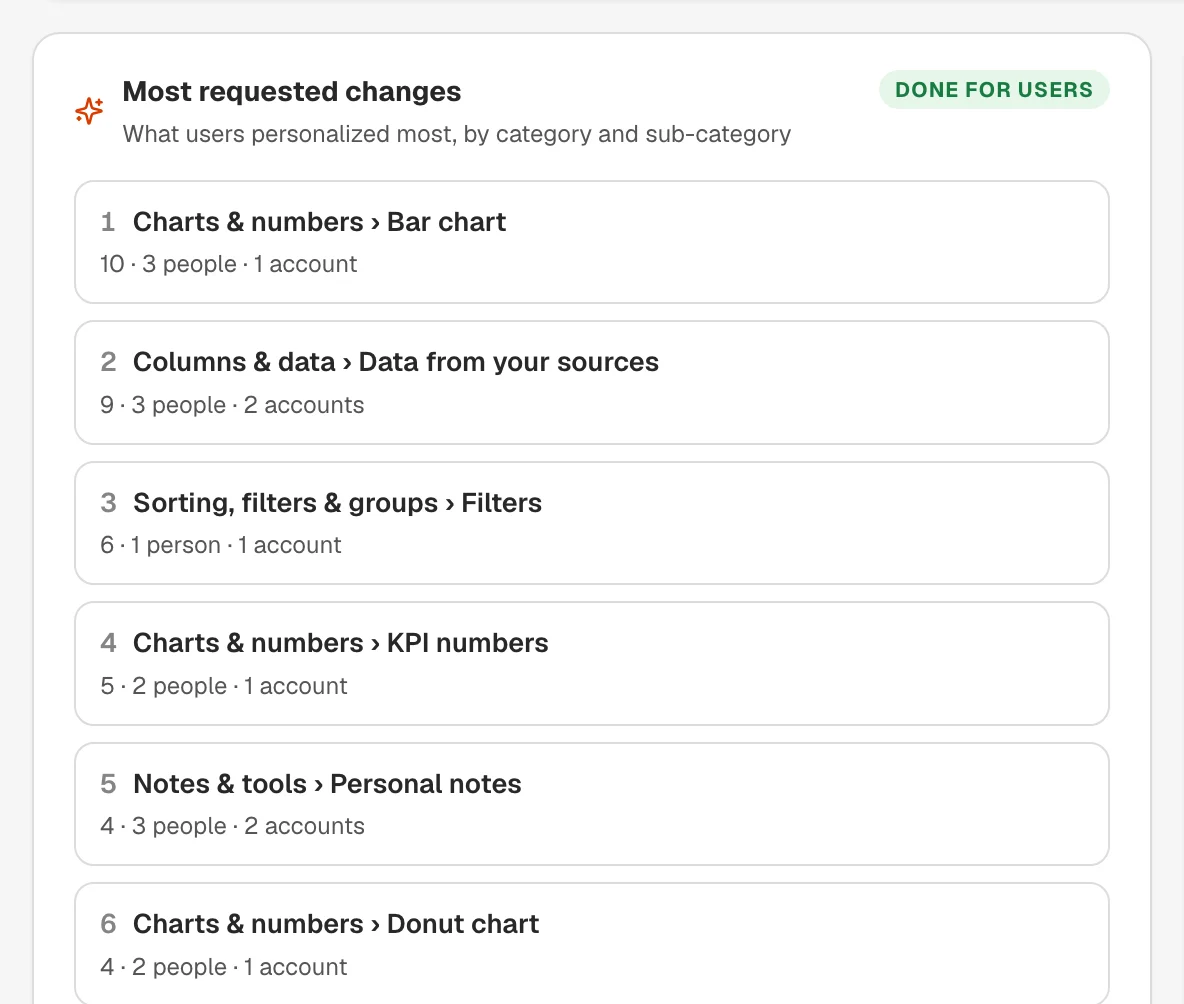
Most requested changes.
What users personalized most, ranked by category and sub-category: charts, columns and data, sorting and filters, highlights, wording, notes. Each line shows how many times, by how many people, at how many accounts.
Open any line to read the requests behind it, as users typed them.
Data users add
The fields from your data sources that users bring into their views, and the share of people personalizing who added each. A field many people add is a field to show by default.
Not possible yet
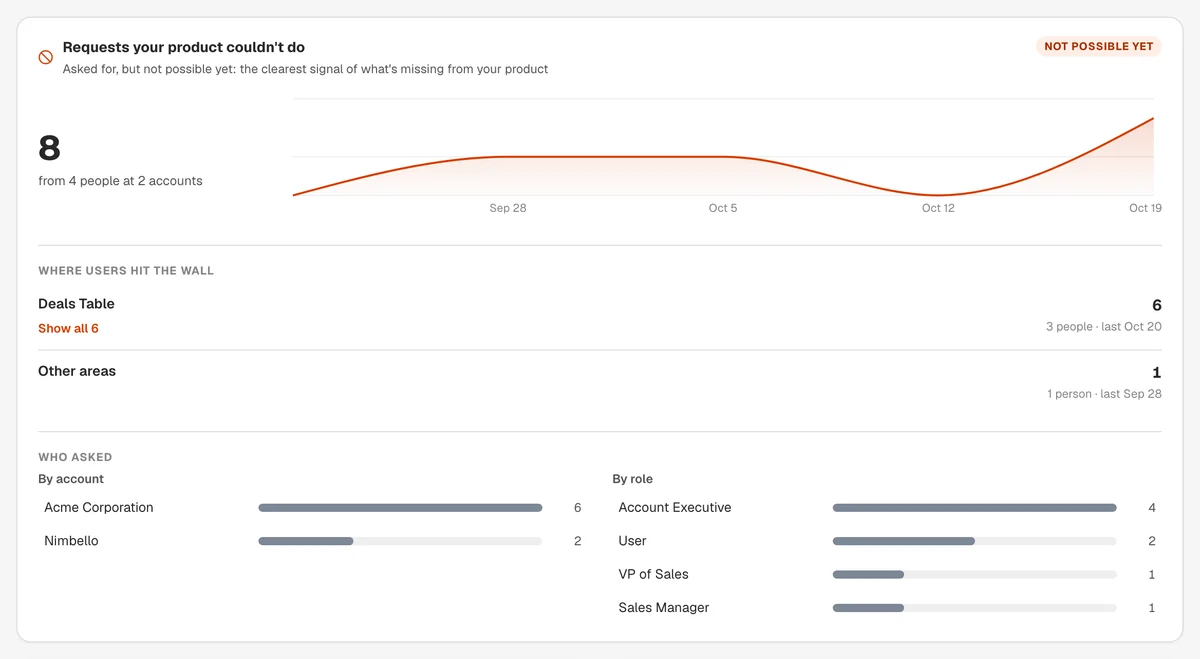
Requests your product can’t do yet.
When a user asks for something your product can’t do, Usivity says so, and the request is kept for your team. It is the clearest signal you have of what’s missing.
- 1
How many, and from whom
Week by week, from how many people at how many accounts.
- 2
Where users hit the wall
Grouped by zone, the part of your product they were in, with their own words.
- 3
Who asked
By account and by role, so you know whose problem it is.
Only real gaps count. A question about the data, a request blocked to protect personal details, or one that worked when the user rephrased it is left out.
Accounts
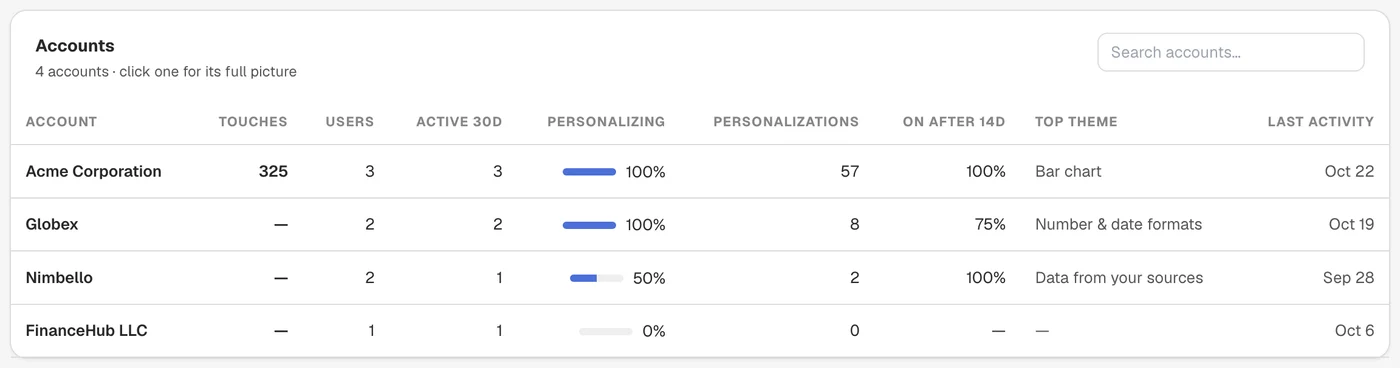
See which accounts make the product their own.
One row per customer: Personal Touches, users, users active in 30 days, the share personalizing, personalizations, the share still on after 14 days, the top theme and the last activity. Click an account for its full picture: by role, by page, by theme, and every personalization.
And the people worth knowing.
- Champions
- Create the most and keep them on: people to interview, or to invite to a beta.
- Rely on it most
- Whose work depends on their personalizations, by Personal Touches.
- Might need help
- Asked for what your product can’t do yet, or turned their own personalizations off.
Adoption
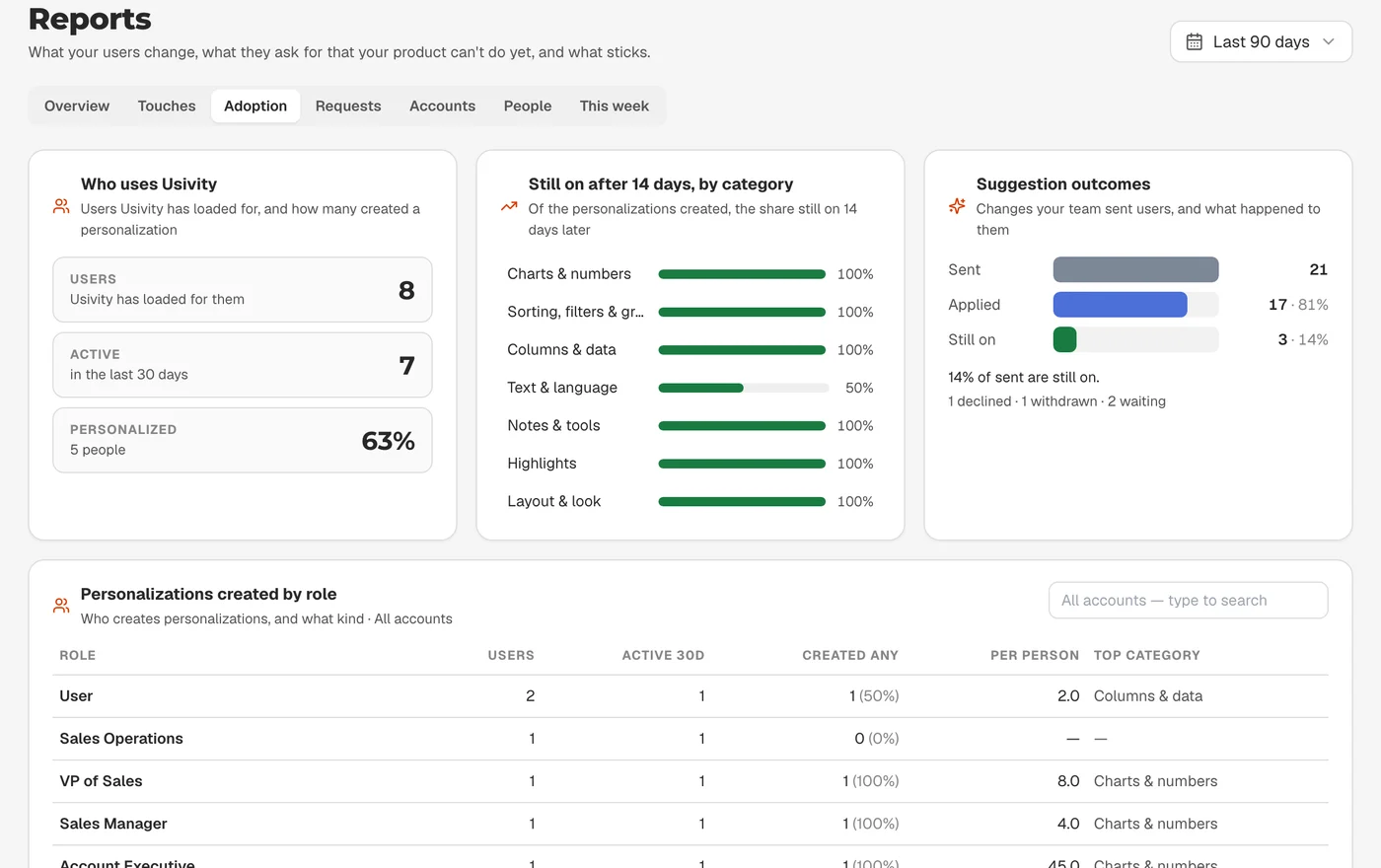
What’s still on after 14 days.
Anyone can try a change once. Reports show the share of personalizations still on 14 days after they were made, overall and by category, so you can tell a passing idea from a lasting need.
- Who uses Usivity, and how many of them have personalized
- Who creates personalizations, by role, and what kind
- Changes your team sent: how many were applied, and how many are still on
Personal Touches
Count what’s used, not what’s made.
A Personal Touch is each time a personalization that’s on is shown to its user. It is how Usivity measures the value personalization delivers.
Reports show Personal Touches week by week, by category, zone, page and account, and which personalizations are shown most.
From signal to roadmap.
Start each week with This week: what people created and asked for, what your product couldn’t do, accounts to watch, pages getting attention, what was turned off, and who is new to personalizing, each against the week before. Then act on it.
- 1
Make a popular change the default
When many people at many accounts make the same change, build it into the product for everyone, and know it’s wanted before you start.
- 2
Find gaps before renewal
An account asking for what your product can’t do, or turning its personalizations off, is one to talk to now, not at renewal.
- 3
Bring evidence to roadmap reviews
Replace “a customer told me” with counts of people and accounts, and the requests in their own words.
- 4
Prepare QBRs
Customer Success opens an account’s full picture: what its users changed, what they kept, and what they asked for.
Reports show requests and changes, not page content. Page content sent with a request is used for that one request and isn’t stored. Security and architecture
Frequently asked questions about Reports.
Is this product analytics?
No. Product analytics count clicks, page views and funnels. Reports show what users asked for in their own words, what they changed, what they kept, and what your product couldn’t do. Use both.
Who on our team sees Reports?
Everyone on your team with a login to the Usivity portal, whatever their role. Your customers’ users never see Reports.
Does it include requests Usivity couldn’t do?
Yes. They’re in the Requests tab as not possible yet, with what was asked, where, and who asked, by account and role. Questions about the data, requests blocked to protect personal details, and requests that worked when the user rephrased them aren’t counted as gaps.
What is a Personal Touch?
Each time a personalization that’s on is shown to its user. It measures how often personalizations are used, and Reports show it week by week and by account.
How are personalizations sorted into categories?
By fixed rules, from what each one actually does, such as adding a chart or renaming a label. No AI is involved, so the same kind of change always lands in the same category.
What period can we look at?
The last 30 or 90 days, the last 12 months, or all time. Click a bar in any chart to filter everything by that category, zone, page, account or role.
Do Reports show our customers’ page content?
No. Reports show the requests users typed, the personalizations that came from them, and the names, companies and roles your team already sees in the portal. Page content sent with a request is used for that one request and isn’t stored.
See what your customers need. In their own words.
In ten minutes we’ll show you Reports on a live demo account: what users change, what they keep, and what they asked for that the product can’t do yet.
Book a 10-minute demo
We reply within one business day.
You’re booked.
We’ll reach out within one business day to confirm your 10-minute demo.