Product overview
The product your customers can make their own.
Customers ask for a change in plain language, right inside your app. It appears for them alone, and your team sees what they need.
What it is
A simple way for customers to change the product they already use.
Usivity works inside your app. It understands a customer’s request, turns it into a safe change to their screen, and remembers it for their next visit.
What it never does
- Create, update or delete your records
- Change your business logic
- Grant access to data a user can’t already see
- Touch your code or your release cycle
From a sentence to a screen that fits, in seconds.
- 1
They ask
A customer types what they want in the Usivity panel, inside your app.
- 2
Usivity checks it
The request is checked against the zones you allow and what Usivity can do.
- 3
Their screen changes
The page they see changes. Your data, records and code do not.
- 4
It stays theirs
The change is saved for next time, private to them, and can be switched off in one click.
Small requests. Real work done.
Start with what customers already ask for: information that is easier to read, use and act on.
Presentation
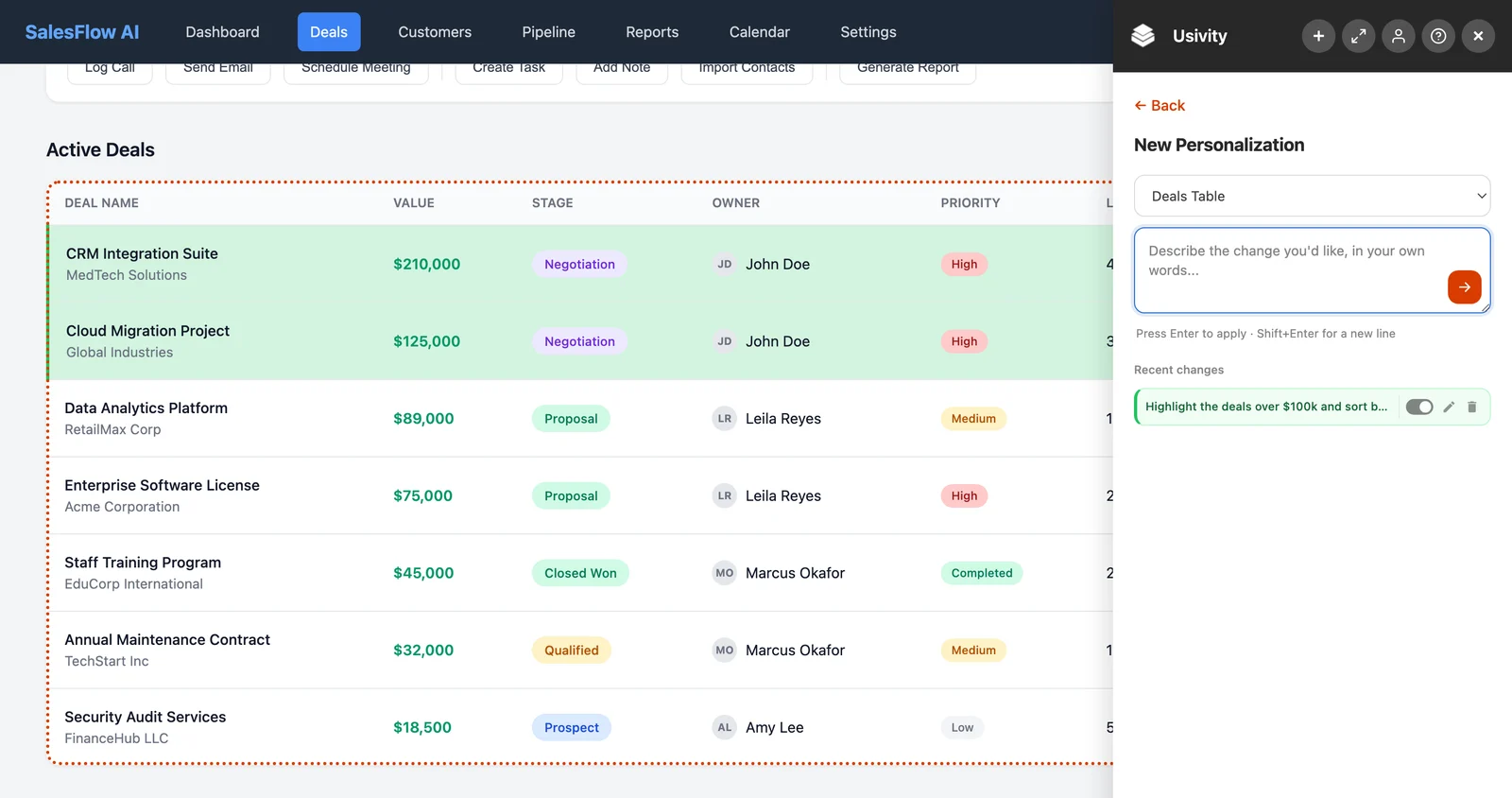
“Fix this table so it shows the performance of my team.”
Reshape tables, reorder and hide columns, rename labels, format numbers.
Data
“Highlight deals over $50k in green and add a progress bar.”
Highlights, calculated values, filters, groups, charts and summaries.
Workflow
“Add an export button for this filtered table.”
Practical shortcuts like exports and personal notes, without rebuilding the page.
Reports
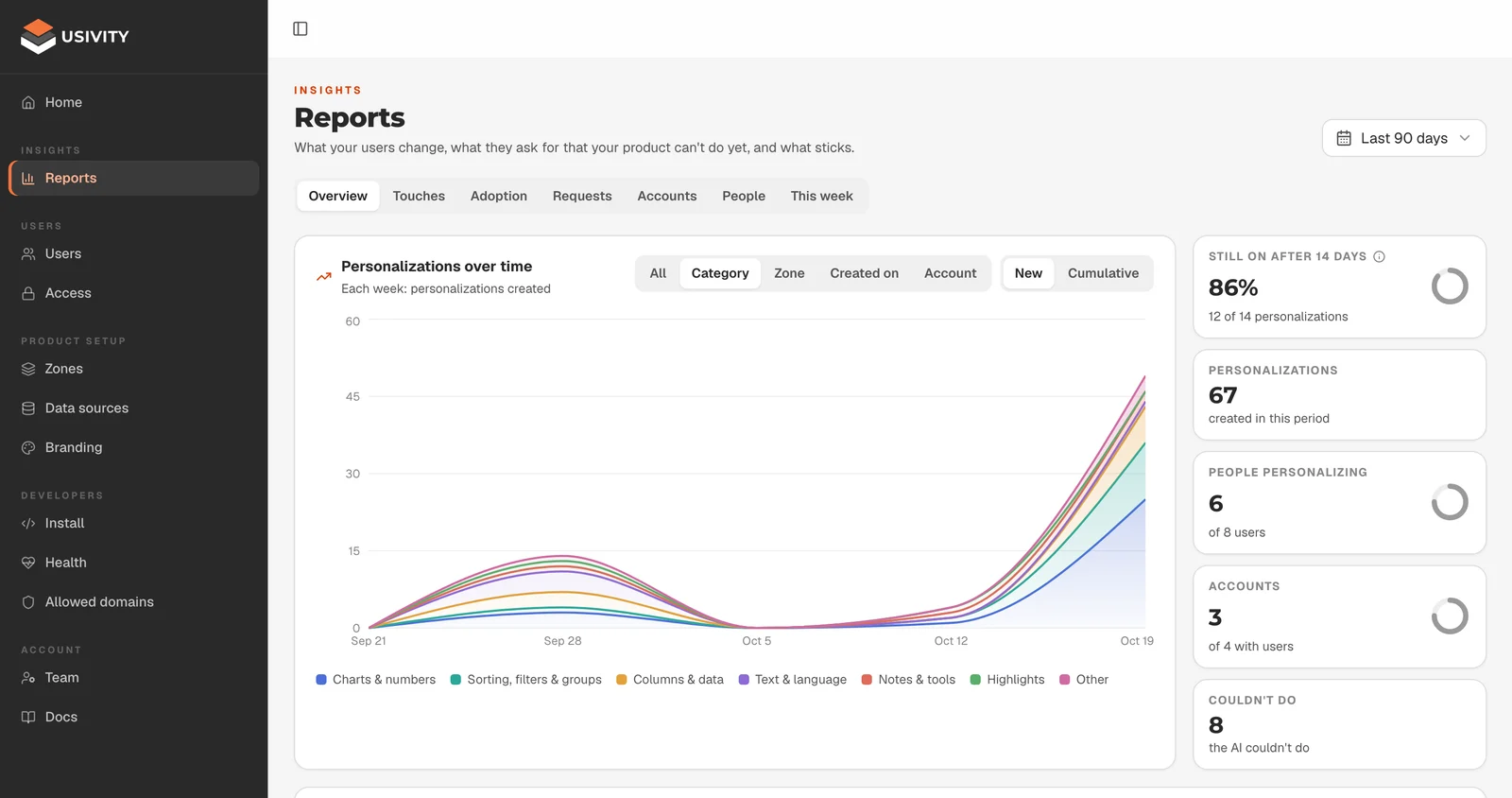
Every request tells you what your customers need.
Each request is a direct signal of demand. Reports turn them into a clear view of what customers want and where your product falls short.
- See the biggest demands across your product
- Spot the gaps that slow adoption or sales
- Know where the core product needs investment
- Review the requests Usivity couldn’t do yet
From your team
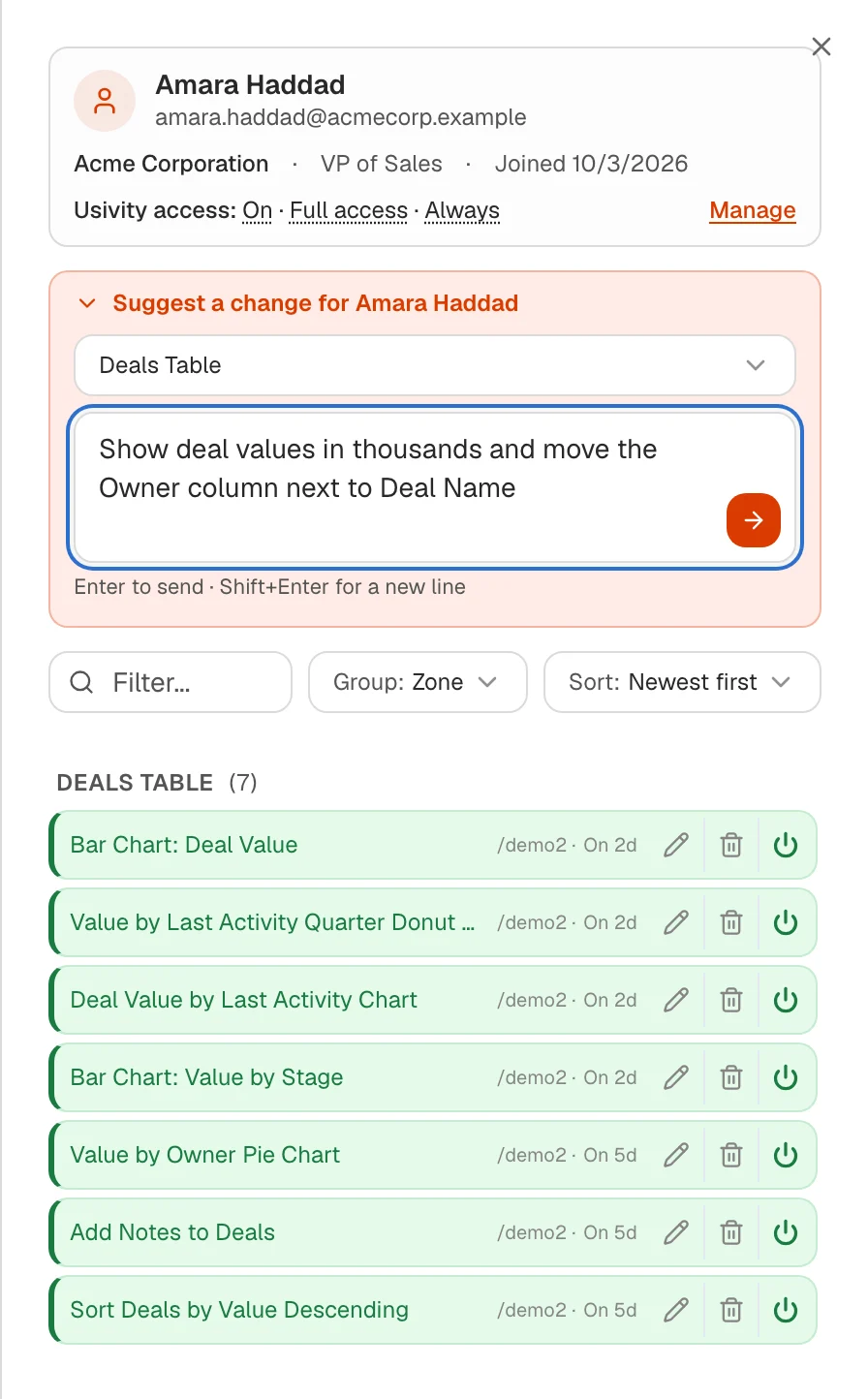
Your team can personalize for customers.
Prepare a change in the Usivity portal and send it to one user or a whole account. It’s there on their next visit, with nothing to build or release.
- 1
Describe it Pick a zone and write the change in plain language.
- 2
Send it To one user, or find an account’s users by company and send it to all of them.
- 3
It reaches them Each user gets their own copy of the change, on their view only, ready on their next visit.
Two ways it reaches a user
They apply it The change waits in the user’s Usivity panel. One click applies it, or they can decline it. Until they do, your team can withdraw it.
It’s simply there For users whose Usivity button is set to never show, the change applies on their next visit to that page. No button, no panel, no message.
The portal shows each one asWaitingAppliedCouldn’t apply
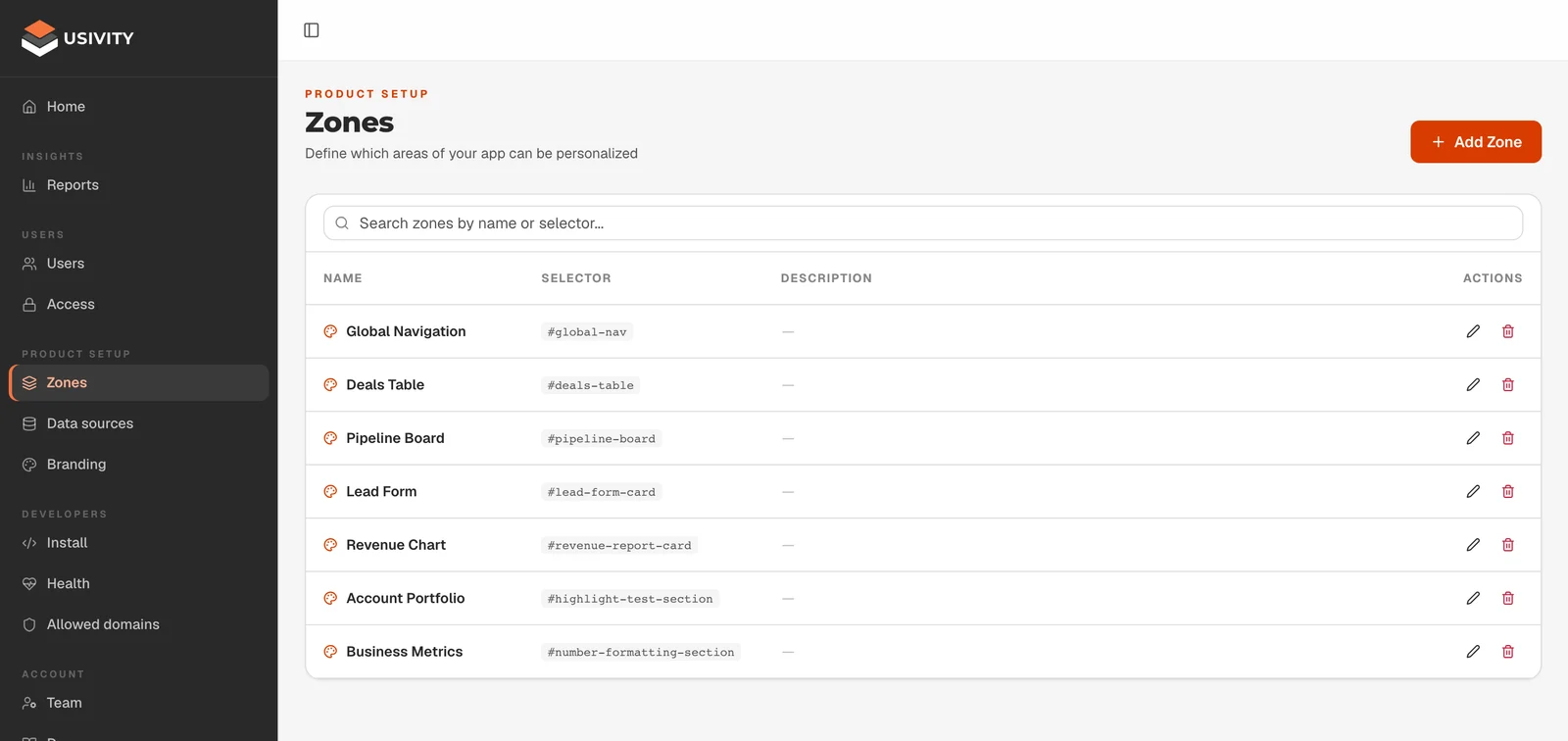
You decide where personalization can happen.
Usivity is useful because it is bounded. Set the limits in your portal, then let customers work inside them.
- 1
Zones
Name the parts of your app Usivity can change, by CSS selector. Everything outside them stays untouched.
- 2
Data sources
Register the API endpoints a personalization may read from. It can call nothing else.
- 3
Domains
Allow the domains that can load Usivity. Until you add one, it loads nowhere.
- 4
Look and welcome
Set the panel’s title, colors and welcome copy, so it feels part of your product.
Security
Safe enough for your security team.
- Personalizations change what the user sees. They never write to your backend.
- What the AI returns is never run as code. The SDK carries out only the changes built into it.
- Personal data such as emails, phone numbers and card numbers is redacted in the browser, then again on our server.
- Live data is fetched from the user’s browser with their own credentials, so your API’s access rules still apply.
- We use Google’s paid Gemini API, which doesn’t use requests or responses to train its models.
- Every personalization is stored with who made it and what they asked. Your team can review, pause or reset it.
One script tag. Your users. Your zones.
- 1
Add one script tag
Load the SDK in your app with your API key.
- 2
Sign each user
Your server signs the user’s ID and email with HMAC-SHA256. No extra login.
- 3
Allow your domain
Only the domains you list can load it.
- 4
Choose your zones
Pick where customers can personalize.
<!-- Before </body>. Your server fills in the user. -->
<script src="https://usivity.com/sdk/usivity.js"
  data-api-key="your_api_key"
  data-user-id="{{ user.id }}"
  data-user-email="{{ user.email }}"
  data-user-hash="{{ hmac_sha256(user) }}"
  async defer></script>
The Security page shows how to compute the hash in Node, Python, Ruby, PHP and Go.
Frequently asked questions about how Usivity works.
What can a customer change?
How your product looks and shows their data inside the zones you allow: tables, columns, labels, highlights, calculated values, filters, charts, exports and personal notes. It never creates, updates or deletes your records, changes business logic or grants access to data.
Does a change affect other users?
No. A personalization applies only to the person who made it, or the person your team sent it to. Hiding something for one user isn’t access control: what users can see and do stays with your code.
Does Usivity call the AI on every page load?
No. A saved personalization is replayed without another AI call, so it appears as the page loads. Saved personalizations keep working even if the AI provider is down.
Does it slow our pages down?
The script tag loads with async and defer, so it doesn’t hold up your page. Saved personalizations replay from a copy kept in the user’s browser, and the code for the Usivity panel loads afterwards, when the browser is idle.
Does it work with single-page apps?
Yes. Usivity re-applies personalizations when the route changes without a full page load, and when the page re-renders, so a sort holds as data refreshes.
How do we undo a personalization?
Users switch their own personalizations off in their Usivity panel. Your team can turn off or delete any user’s personalizations in the portal, and one switch turns Usivity off for everyone. Users whose button never shows can’t undo a change your team sent, so your team does it for them. A few kinds of change are fully undone on the next page load. Your app never changed, so there’s nothing to clean up.
What if the AI gets a request wrong?
The person who asked sees the result straight away and can switch it off or ask again. A request Usivity can’t do inside your zones is declined and logged for your team. What the AI returns is never run as code: the SDK carries out only the changes built into it. AI isn’t perfect, so check a personalization before anyone relies on it for critical work.
What happens when we change our UI?
Zones and personalizations point at parts of your page by CSS selector. If a redesign moves or renames one, the personalizations that depend on it are skipped and users see your standard view. Keep zone selectors current when you ship UI changes, and we’ll help you find the personalizations a change affected.
Can our team set up personalizations for customers?
Yes. A team member writes the change in plain language in the portal and sends it to one user or a whole account. Users apply or decline it in their Usivity panel. For users whose button never shows, it applies on their next visit. The portal shows whether each change applied, and why if it couldn’t.
What does our team learn?
Every request in the user’s own words, where it was made and what came of it, including the ones Usivity couldn’t do. Reports add them up by account, page and role.
See it on a real app. Ten minutes, your questions.
In ten minutes we’ll show you what your customers can change on their own, and what your team never has to build.
Book a 10-minute demo
We reply within one business day.
You’re booked.
We’ll reach out within one business day to confirm your 10-minute demo.